 COME
COMEUnderstand a COME Update Request Before Acting
Before following a COME update request, identify the screen making the request and the release it offers. An update-status row, a browser download and an Android result are separate events.
Read the request in its current screen
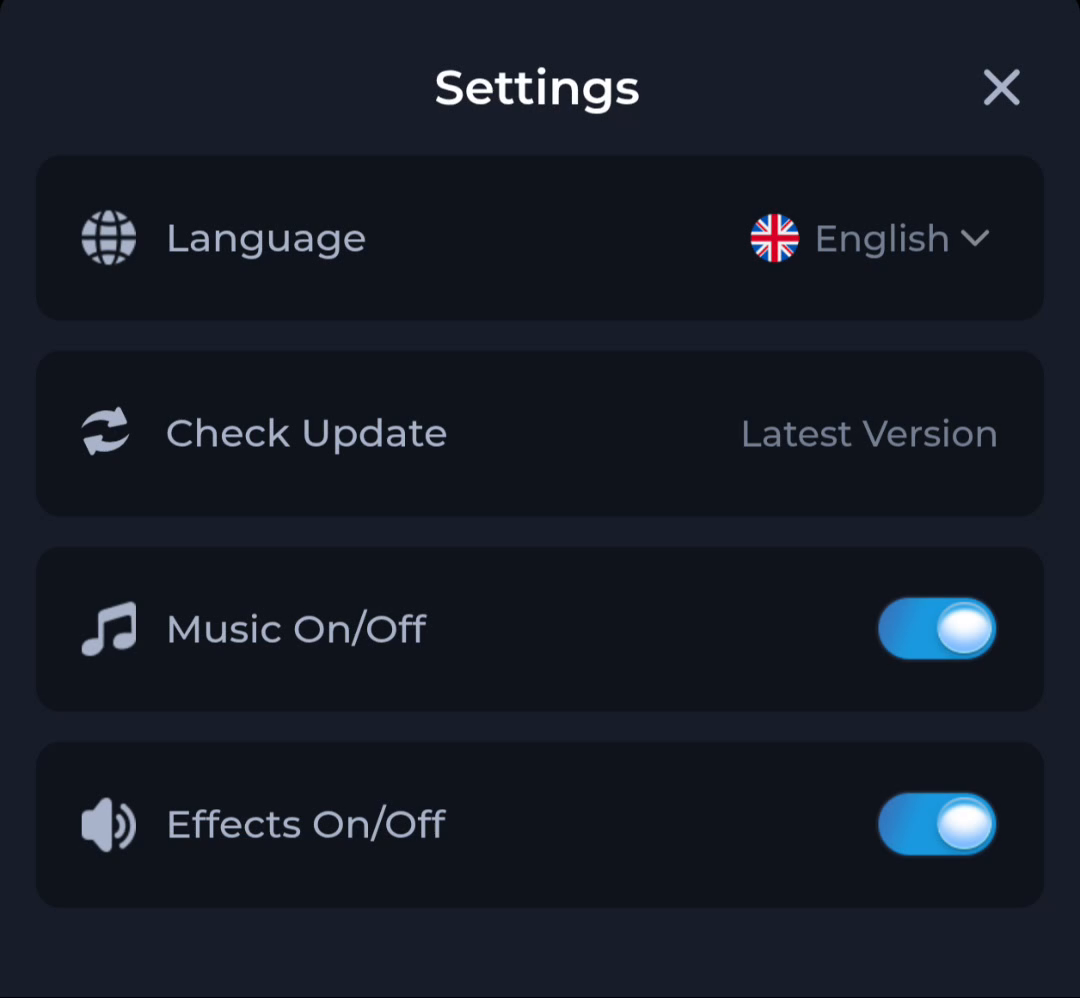
Settings includes Check Update alongside language and sound. A request elsewhere may come from a webpage or another part of the service. Check the destination and offered package rather than treating every update-looking message as the same action.
Compare explicit release information
Note the installed version when available and read the current offer. “Latest Version” is a status phrase; a check date and a filename are other fields. Use a specific release comparison when deciding whether the package matches your task.
Preserve access and check the outcome
Keep the working app and recovery method while assessing the request. If you install an accepted update, open the app and inspect the original task. If Android refuses or warns about the package, retain the message and resolve it through appropriate guidance.
A useful next step
Use the full download route when the request calls for a package change. Keep update checking separate from account and game-selection screens.